

Social Stories
PDF stories for routines, feelings, and everyday experiences. Download them now or use the stories already included in the app.
A little extra, made for your app
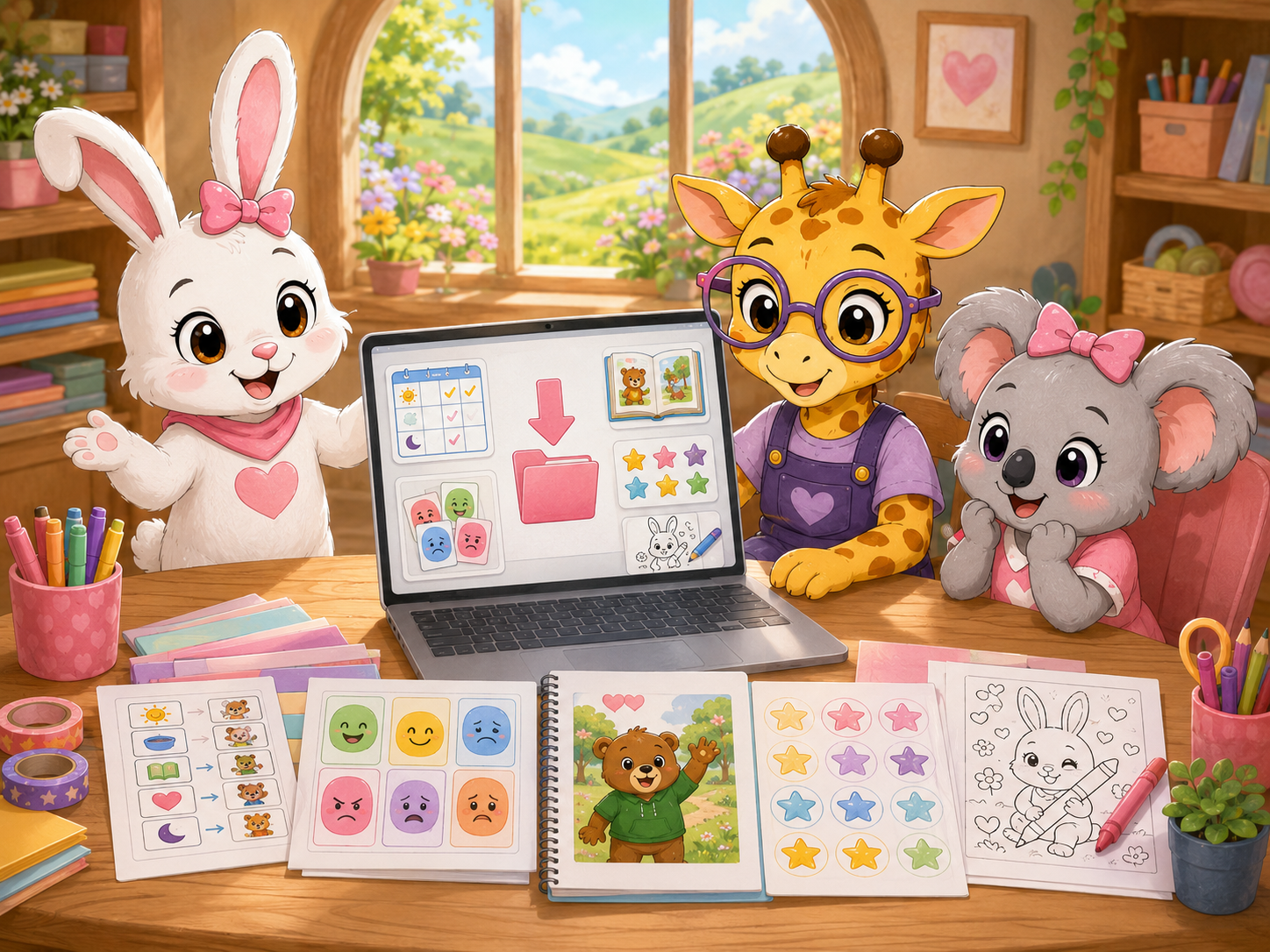
More ways to make My Daily Helper your own. Download Social Stories, Visual Schedules, EveryBunny Talks Cards, My Calm Music, and offline Voice Packs. Learning Center lesson collections and more resources are planned for the future.
Explore the possibilities
Browse ready-to-download stories, schedules, communication card packs, audio, and voices below. Resources already supplied with the app are tagged Included in My Daily Helper, so you can restore them without reinstalling. Learning Center lesson collections are coming soon.
PDF stories for routines, feelings, and everyday experiences. Download them now or use the stories already included in the app.
Complete routines with ordered activities and pictures. Restore included schedules or add something new, then personalize the steps in the app.
Explore the app’s communication cards, organized into downloadable category packs.
Download the five songs and sounds included in My Daily Helper, and add removed tracks back to My Calm Music.
Planned lesson resources to bring more learning activities into My Daily Helper.
Natural female and male voices are included in My Daily Helper. Add the larger enhanced English pack for full-precision speech.
Our plans don’t stop here. We’ll keep exploring new kinds of addons as the library grows, and we’d love to hear what would support your day.
Prefer paper? Print these PDFs and use them directly, without the app.
Explore Printables →563 communication cards in 41 category packs. These cards are already in My Daily Helper’s Card Library; download only if you want separate images for visual supports or custom copies.
41 category packs
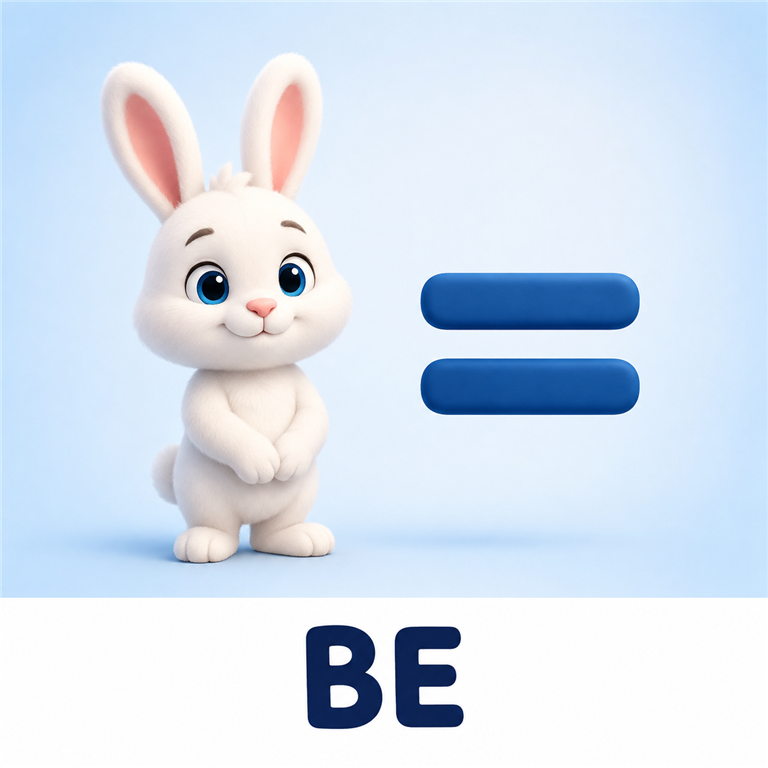
Be · Does · Did · Could · Would · Should · May · Must · Tell · Ask · Feel · Find · Try · Work · Play · Read · Write · Went · Saw · Had · Turn · To · For · From · About · Away · A · The · I Feel · I Am · I Have · I Want To · I Need To · I Like · I Don't Like · Help · Wait · Yes · My Turn · Break · Your Turn · No · I Don't Want · More · Finished · I Want · Stop · That · All Done · Something Else · Don't · This · These · Those · Mine · Us · Them · See · Say · Think · Know · Is · Are · Was · Will · Maybe · And · Or · But · Because · With · Without · If · Then · So · While · Also

Throat Hurts · Stomach Hurts · Need A Doctor · Need A Bandage · I Feel Sick · I Feel Dizzy · I Am Hurt · Head Hurts · Ear Hurts · Too Cold · Too Hot · Tooth Hurts
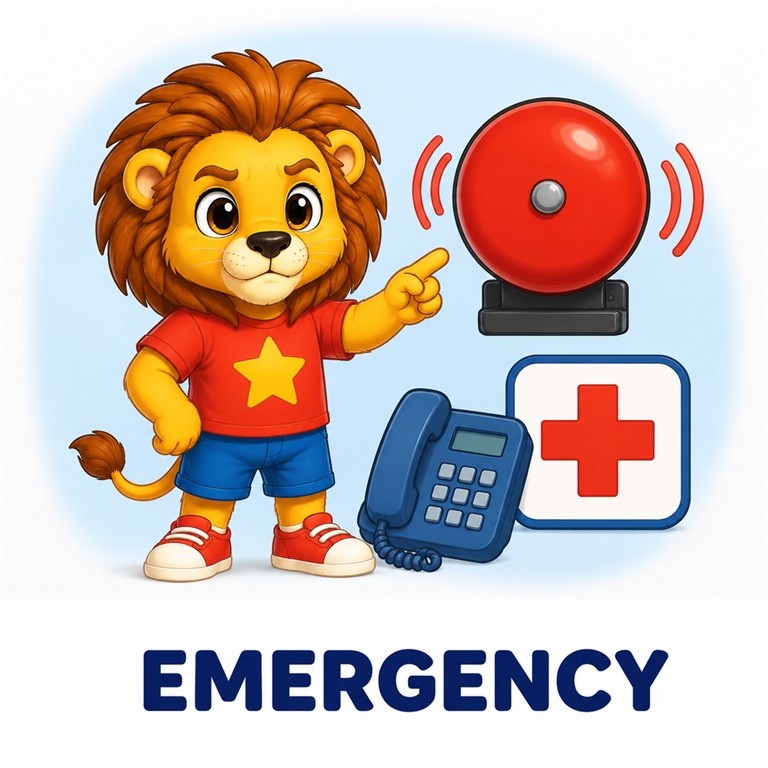
Emergency · Call For Help · I Need To Leave · I Need A Trusted Adult · I Feel Unsafe · Close The Door · This Is Private · I Do Not Consent · Don't Touch Me · Please Ask First
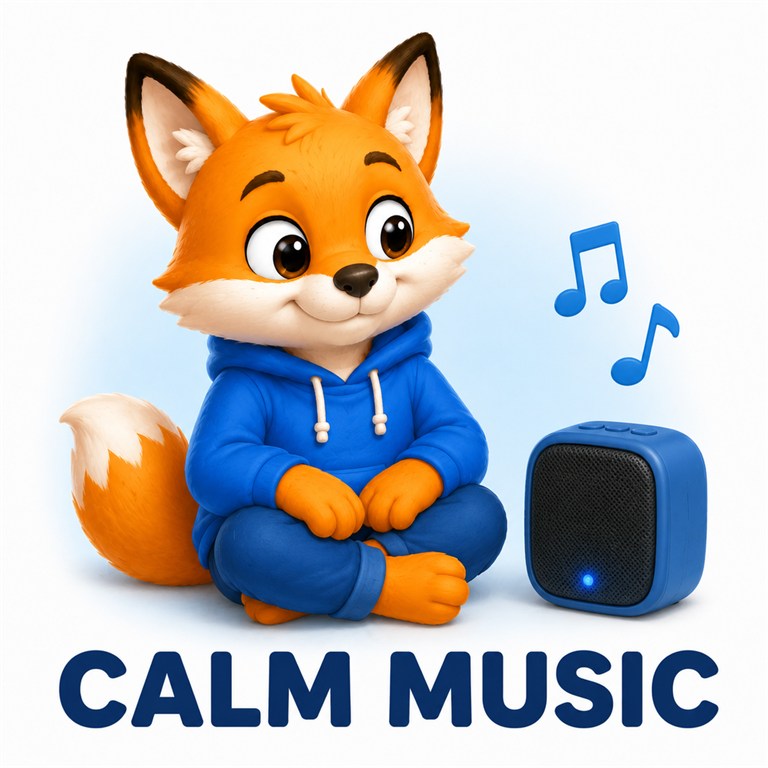
Calm Music · Timer · Stretch · Squeeze · Soft Blanket · Rock · Quiet Space · Headphones · Fidget · Dim Lights · Deep Breaths · Take A Walk
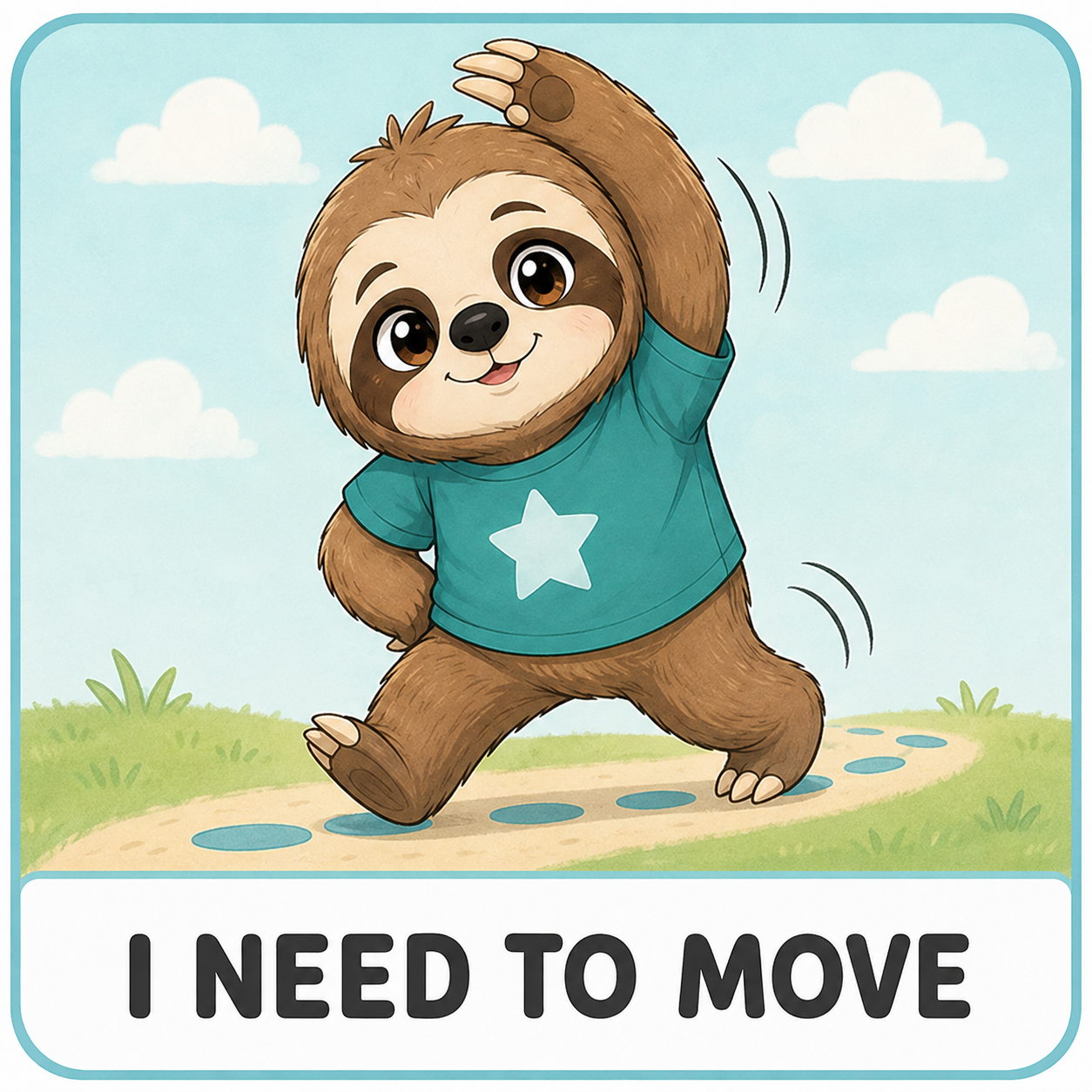
I Need To Move · Too Crowded
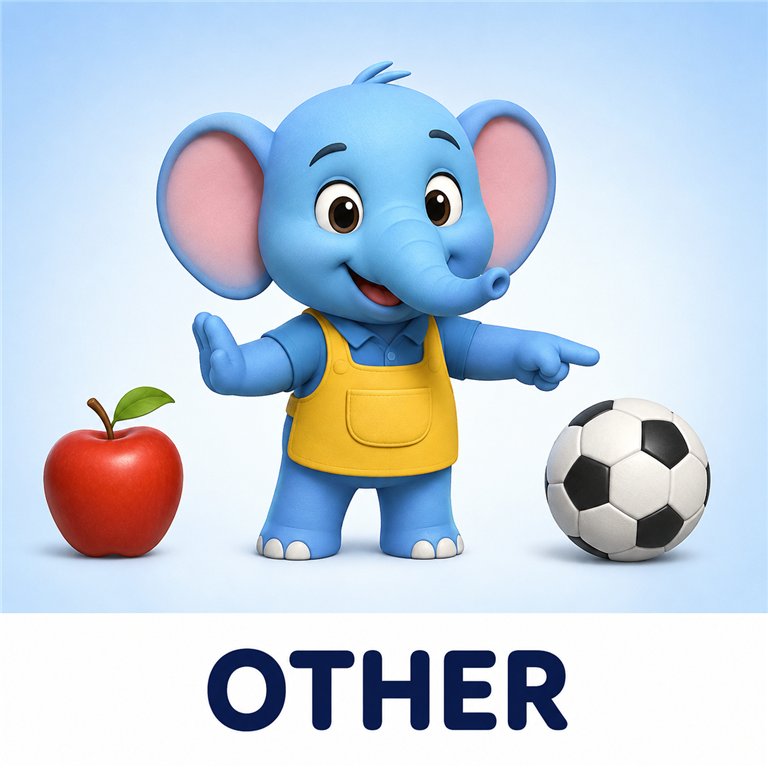
Other · Another · Favorite · I Like It · That One · Neither · Open · I Don't Like It · Same · Both · This One · Big · Closed · Small · Different · Let Me Try · I Can Do It · Not Yet · I Need A Choice · I Want To Do It Myself · I Need A Different Activity · I Need A Different Time
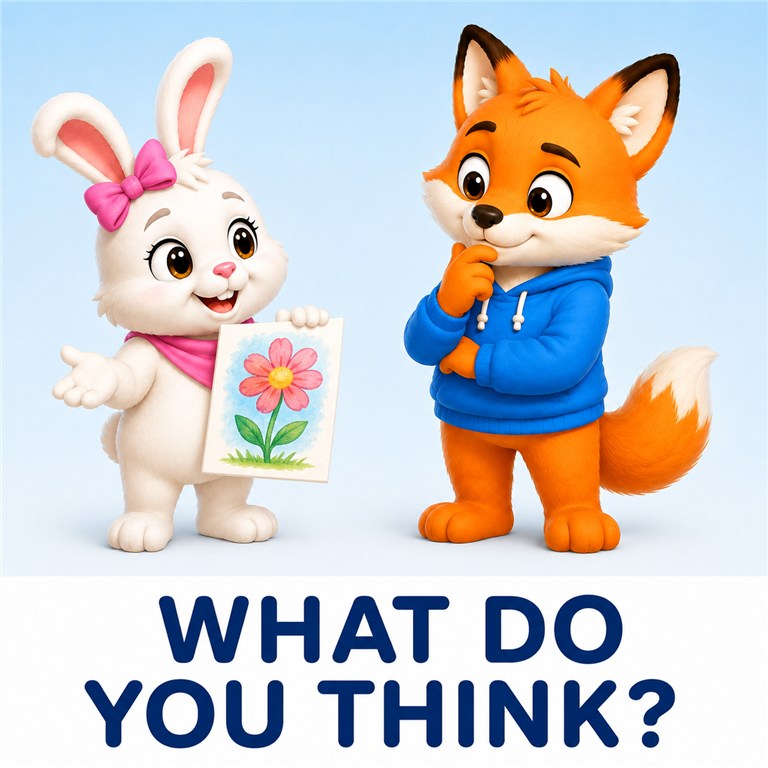
What Do You Think · I Have an Idea · I Disagree · That Is Interesting · That Is Funny · I Remember · I Notice · I Wonder · I Think · I Hear · I See · I Agree
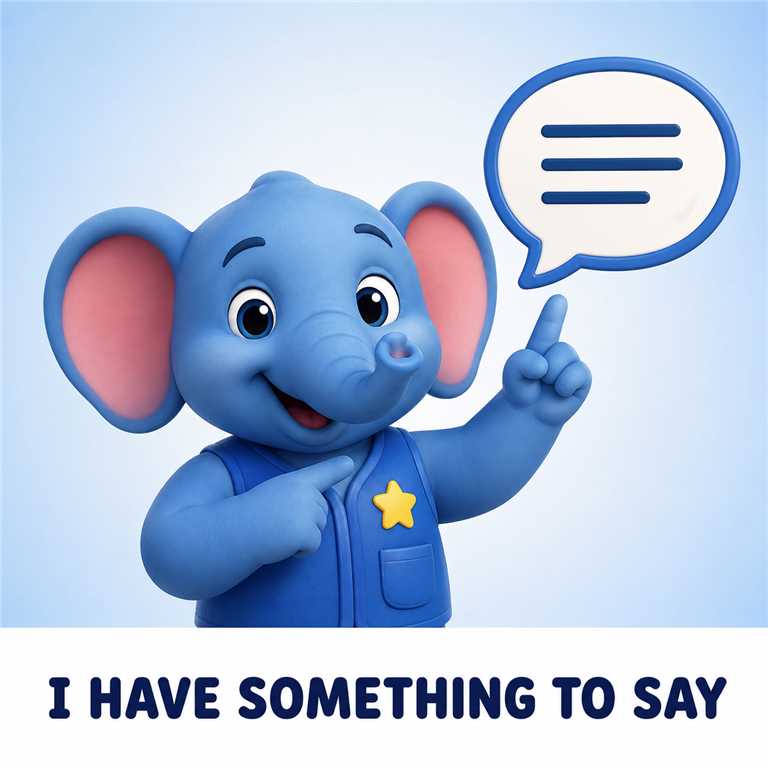
I Have Something To Say · Please Don't Guess · That Is Not Right · Let Me Finish · I Want To Talk About · I Use AAC · Please Wait While I Type · Please Ask Me Directly · I Want To Tell You Something · I Need Another Way · Ask Me Yes Or No · I Changed My Mind · Please Listen · I'm Still Talking · Give Me Time · Show Me A Picture · Write It Down · Speak Slower · Try Again · Wrong One · That's Not What I Mean · Understand · I'm Not Sure · That's Not What I Meant · Slower Please · I Need Help · I Need A Different Way · Please Tell Me First · Please Listen To Me · Please Believe Me · Please Say It Another Way · I Feel Misunderstood · I Need More Information
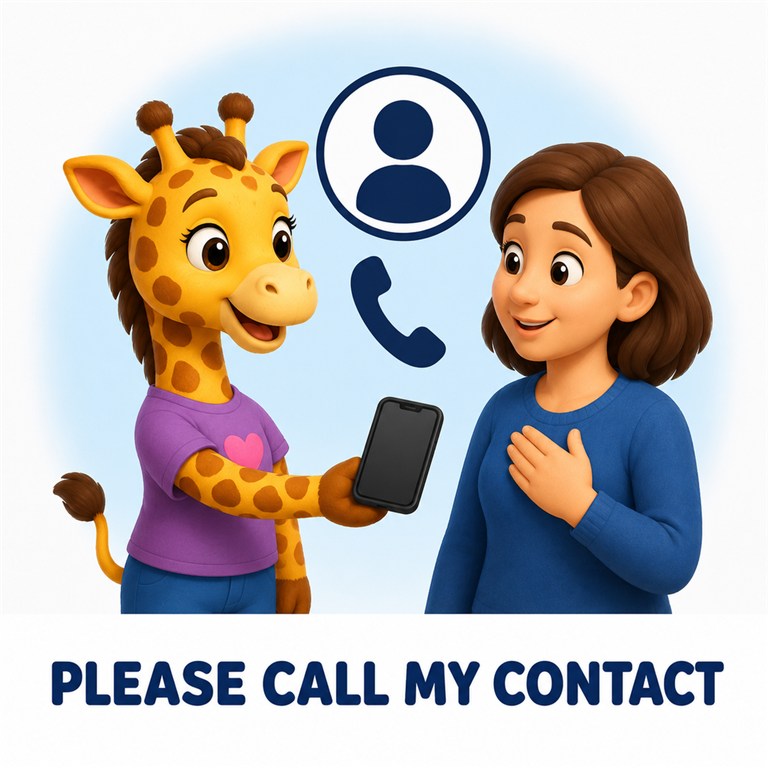
Please Call My Contact · I Missed My Stop · I Need A Firefighter · I Need A Police Officer · I Need Security · I Need Customer Service · I Need A Quiet Place · Where Is The Bathroom · Where Is The Exit · Please Show Me On A Map · I Need Directions
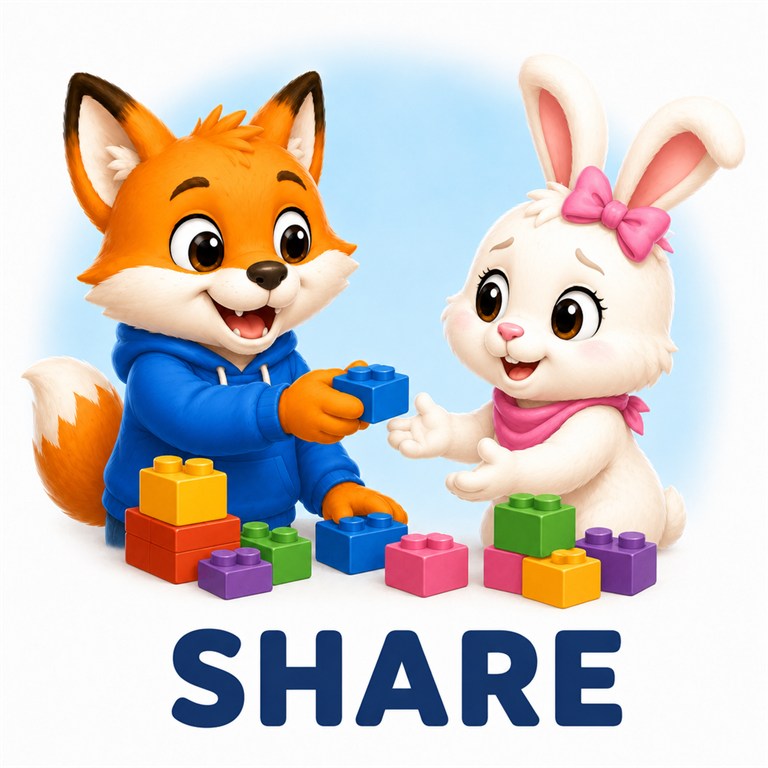
Share · Thank You · Excuse Me · Play With Me · Can I Join · Goodbye · Listen · Come With Me · Look · Hello · Sorry · Please

There · Put · Take · On · Off · Make · Here · Go · Give · Get · Do · Come
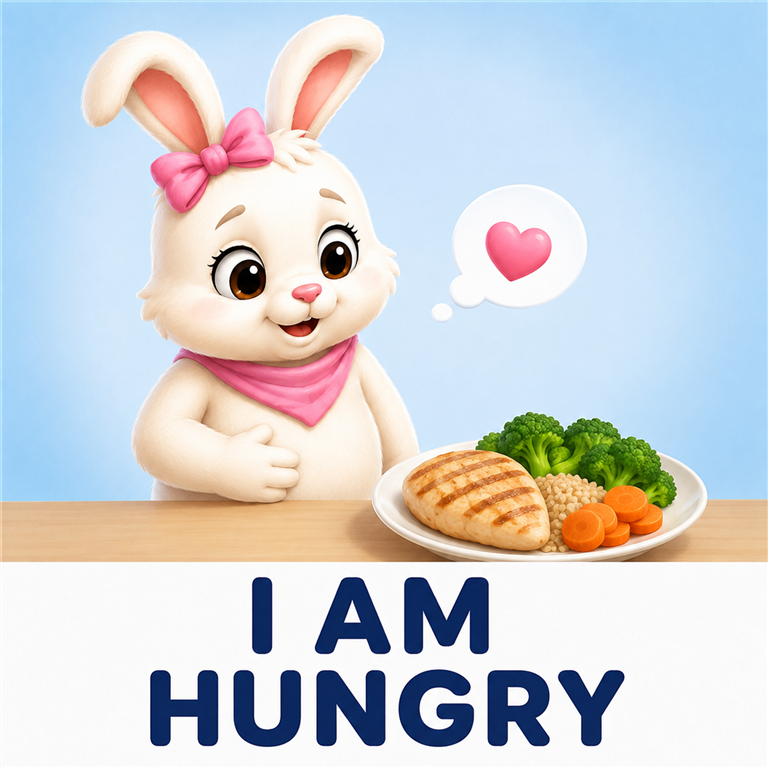
I Am Hungry · I Am Thirsty · Bathroom · Too Loud · I Need Space · Too Bright · Drink · Eat · Hot · Tired · Sick · Cold · Hurt · Quiet

Too · Funny · Boring · Little · Good · Bad · Right · Wrong · Fast · Slow · Very · Enough · Only · Almost · Really

I Am Choking · I Am Bleeding · I Am Having A Seizure · I Am Allergic To This · This Is An Emergency · I Need An Ambulance · Someone Hurt Me · I Am In Danger · This Is My Emergency Contact · There Is A Fire · Someone Is Hurt · Please Stay With Me · I Smell Smoke · I Need To Leave Now · I Need Help Now · I Do Not Feel Safe · I Cannot Find My Support Person · I Am Safe Now · I Cannot Breathe · Call My Caregiver · I Need A Safe Person
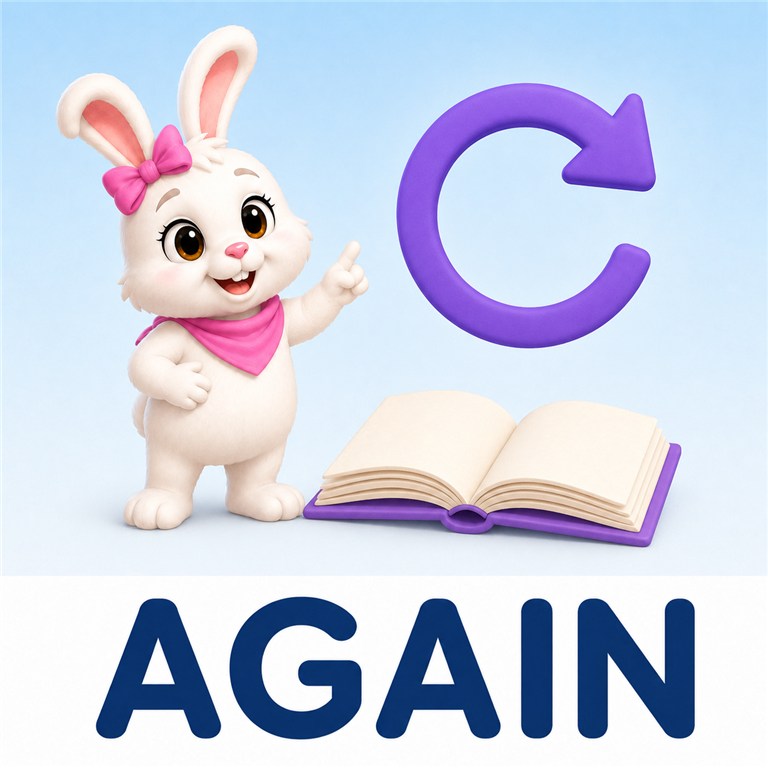
Again · Not · Can · Have · Like · Need · Want · Some · All · Anything · Something · Nothing

Love · Excited · Confused · Sad · Happy · I Don't Know · Calm · Overwhelmed · Scared · Worried · Frustrated · Angry · Lonely

I Feel Proud · I Feel Embarrassed · I Feel Disappointed · I Feel Confused · I Feel Left Out · I Feel Lonely · I Feel Excited · I Feel Frustrated · I Feel Overwhelmed · I Feel Uncomfortable · I Feel Safe · I Feel Brave · I Need Reassurance · That Hurt My Feelings

Water · Different Food · Something Sweet · Vegetables · Fruit · Dinner · Lunch · Breakfast · Snack · Juice · Milk · Something Salty · I Need A Different Food

I Feel Sick · I Feel Nauseous · I Am In Pain · It Hurts Here · I Need My Medicine · I Need A Doctor · Something Feels Wrong
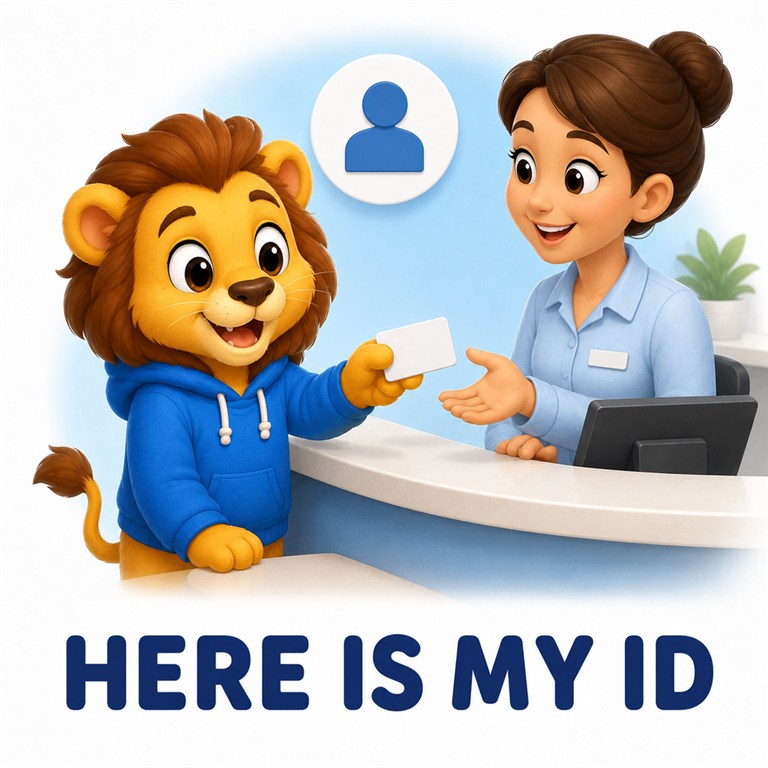
Here Is My ID · I Am Ready To Leave · I Have A Question · Where Will You Touch · Please Tell Me Before You Touch Me · Please Explain That Again · I Need To Check In · I Need My Support Person · I Need More Time · I Need A Quiet Space · I Need A Break · I Have An Appointment
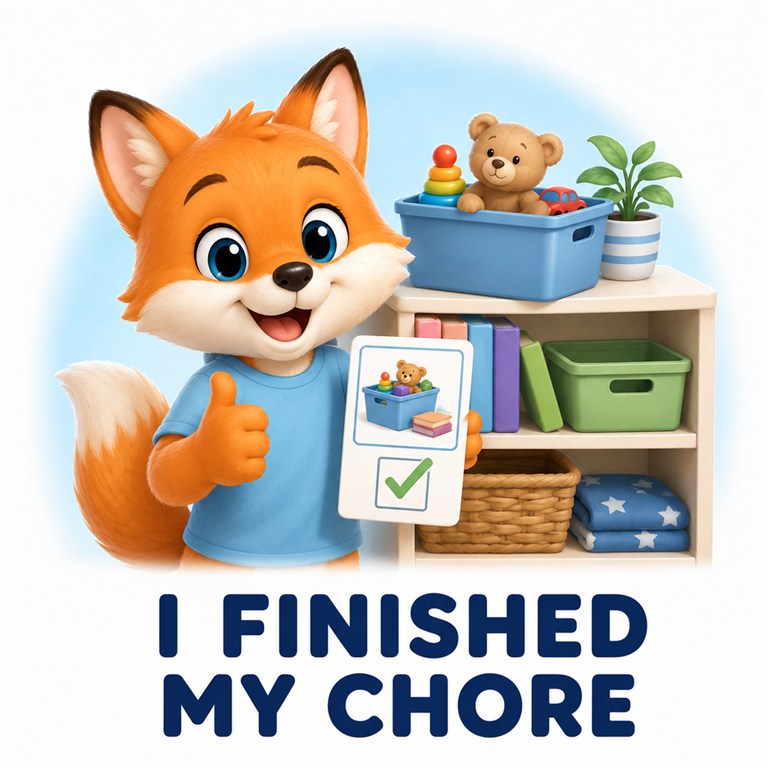
I Finished My Chore · I Need A Trash Bag · I Need Cleaning Gloves · I Need Help Folding · I Need To Do Laundry · Where Does This Go · What Is My Chore · This Area Is Clean · The Washer Is Finished · The Trash Is Full · The Dryer Is Finished · Please Show Me The First Step

I Want to Return My Books · When Is My Book Due · I Want to Borrow This Book · I Want to Listen to a Book · I Need a Reading Break · Please Read More Slowly · What Does This Word Mean · Please Read With Me · I Want This Book · Please Help Me Choose · I Want to Find a Book

This Is Too Hot · Please Save This For Later · Please Cut This Into Smaller Pieces · Please Check The Ingredients · I Need More Time To Eat · I Need Help Opening This · I Need A Straw · I Need A Napkin · I Need A Different Utensil · I Cannot Eat This · I Am Finished Eating · I Have A Food Allergy

Family · Sister · Brother · Friend · Teacher · Caregiver · Parent · Dad · Mom · Therapist · Classmate · Staff
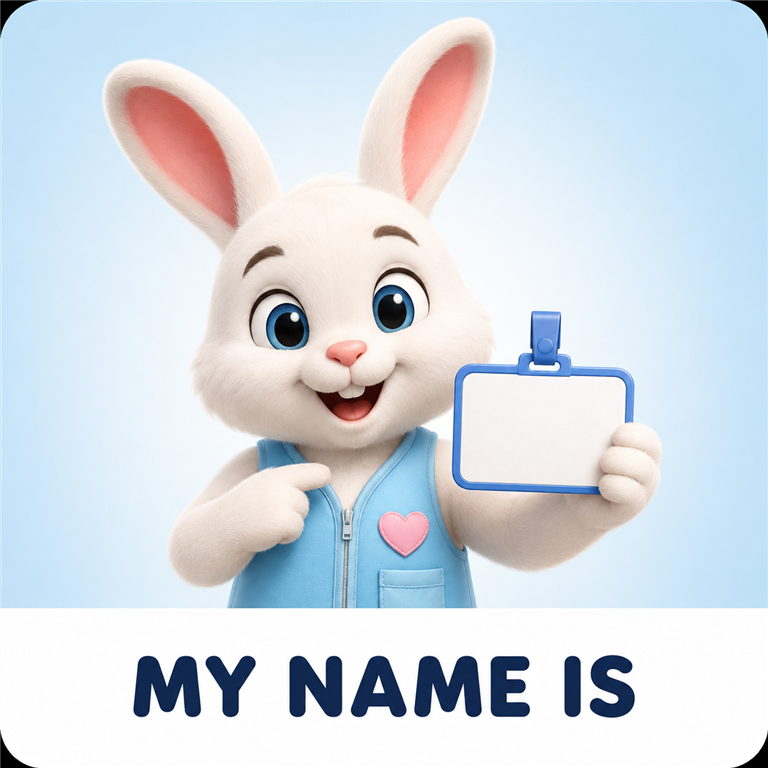
My Name Is · I Need A Different Person

Their · Our · Your · It · She · He · They · We · You · Me · I · My
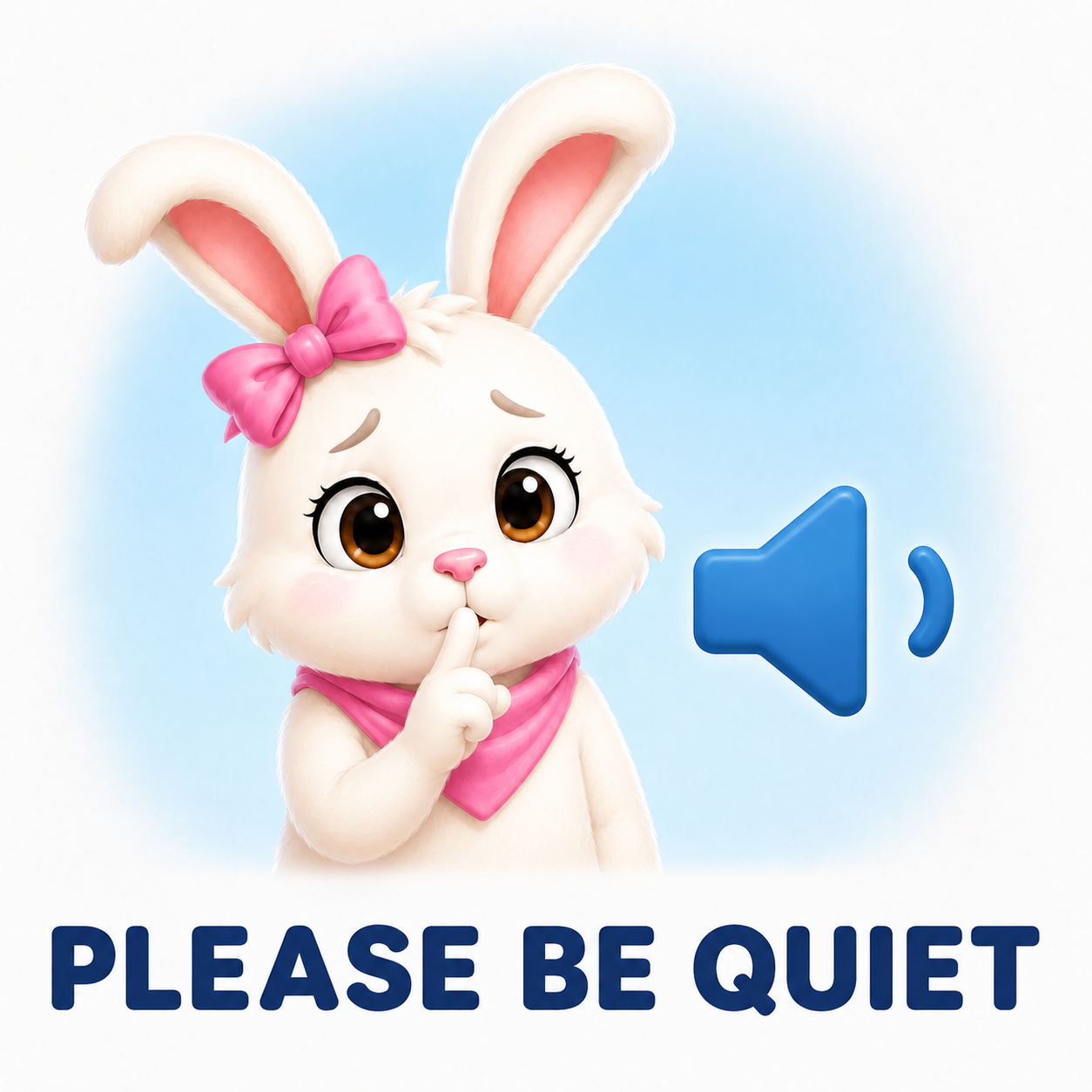
Please Be Quiet · Please Stop · I Need Privacy · Do Not Move Me · Ask Before Helping · Can We Talk Privately · Please Check With Me

Eat Breakfast · Bedtime · Pack Bag · Get Dressed · Wake Up · Wash Face · Brush Hair · Wash Hands · Brush Teeth · Clean Up · Shower · Take Medicine
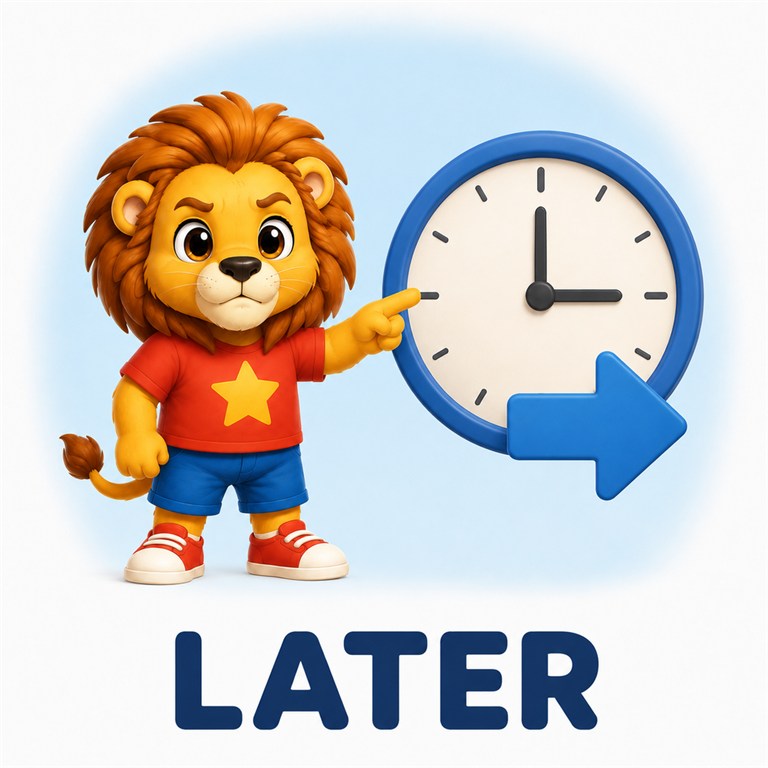
Later · Work · Bus · Outside · Doctor · School · Inside · Now · Car · Dentist · Home · Store
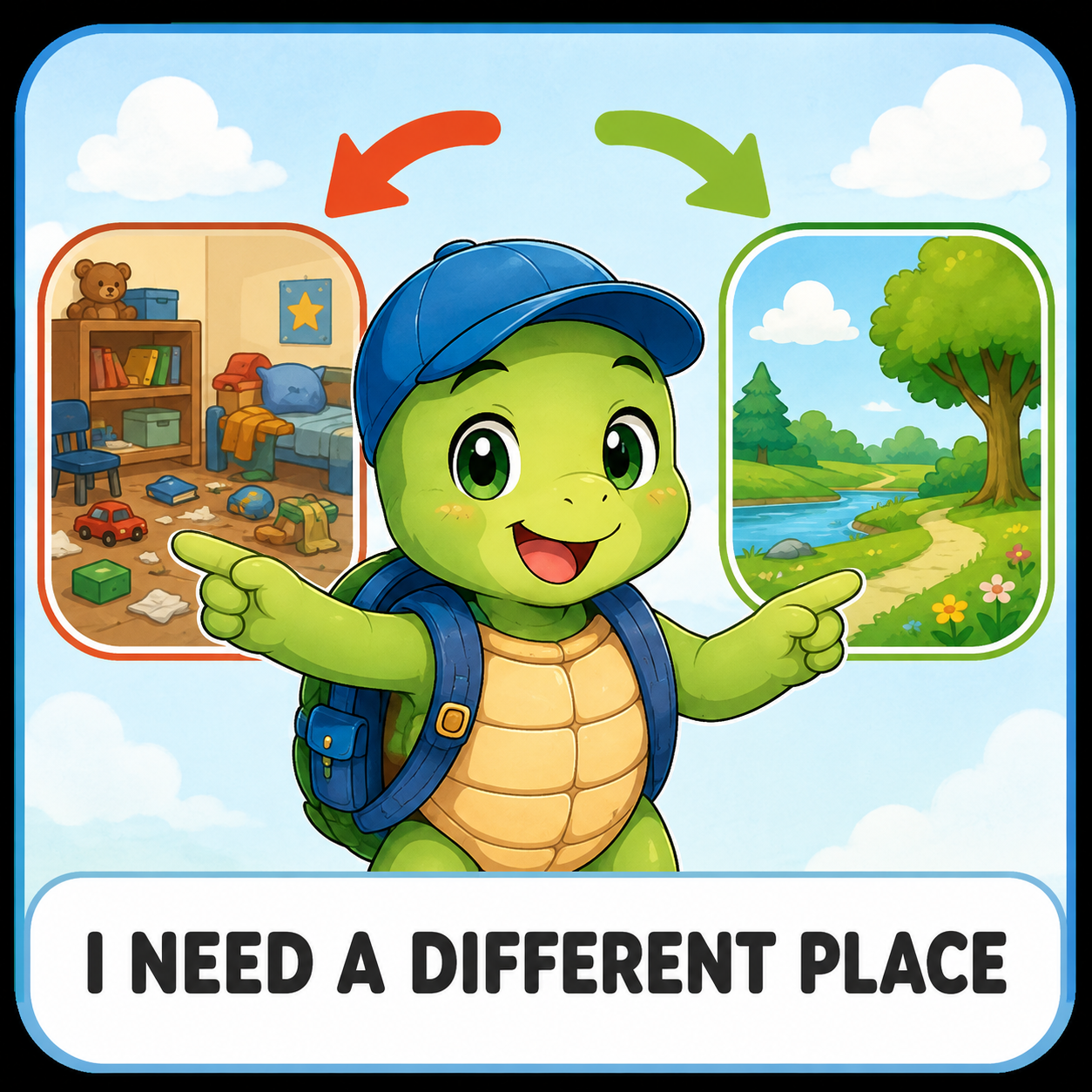
I Need A Different Place
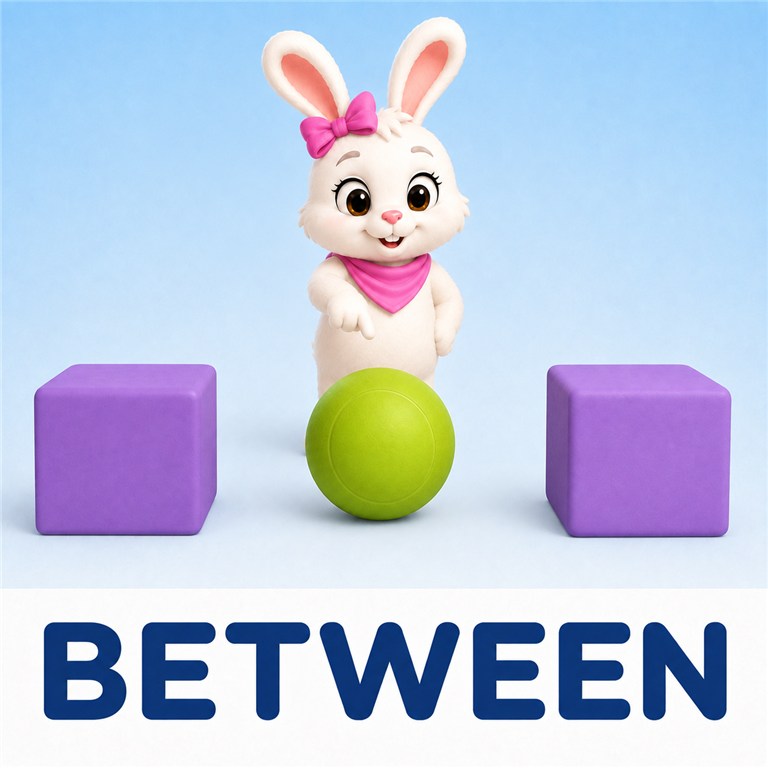
Between · Beside · Behind · In Front · Under · Out · In · Up · Down · Before · After · First · Last · Soon · Today · Tomorrow · Yesterday

Can I · Can You · Do You · Please Explain · Tell Me · Show Me · I Don't Understand · I Understand · How · Why · When · Who · Where · Say It Again · What · Which · Are You Joking · What Do You Mean
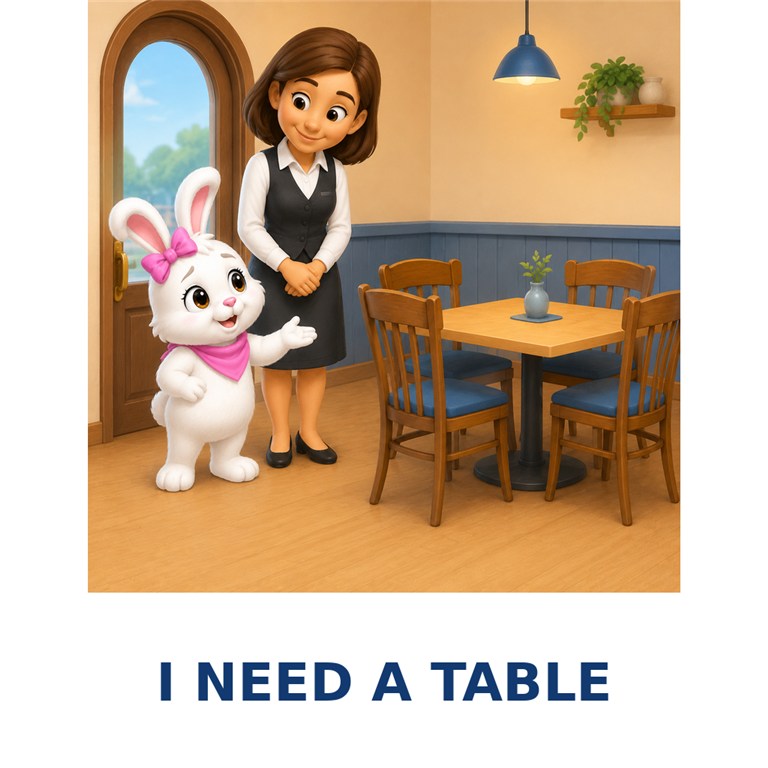
I Need A Table · I Need A Quieter Seat · Please Show Me The Menu · I Would Like To Order · I Need Help Choosing · I Am Ready To Pay · I Need The Bathroom · How Much Longer · Please Leave This Off · No Thank You
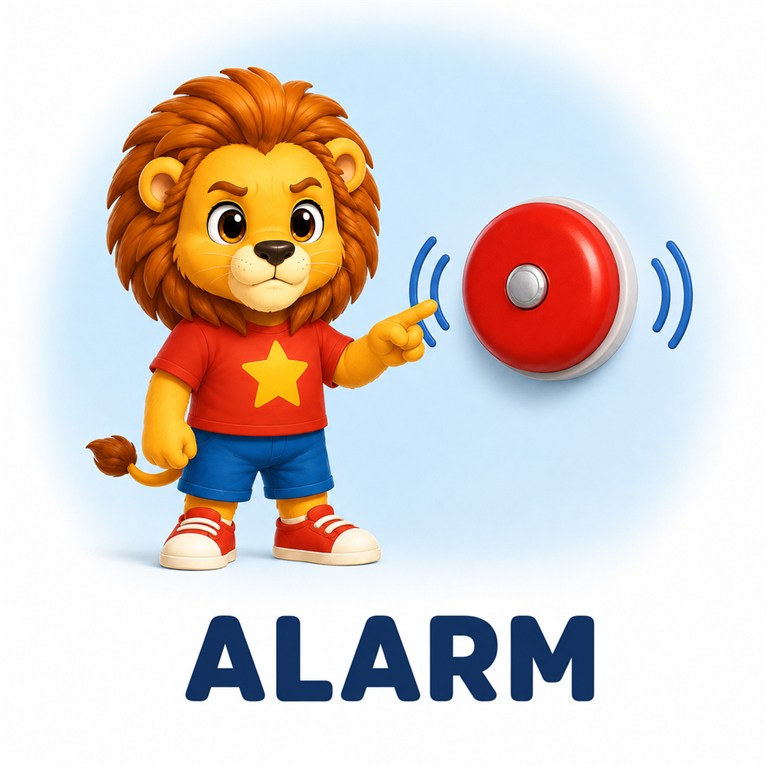
Alarm · Stay With Me · Police Officer · I Need A Safe Place · I Am Lost · Help Me Now · Firefighter · Fire · Exit · Emergency Contact · Call 911 · Smoke

Crafts · Count · Computer · Exercise · Math · Puzzle · Read · Write · Cook · Music · Draw · Color
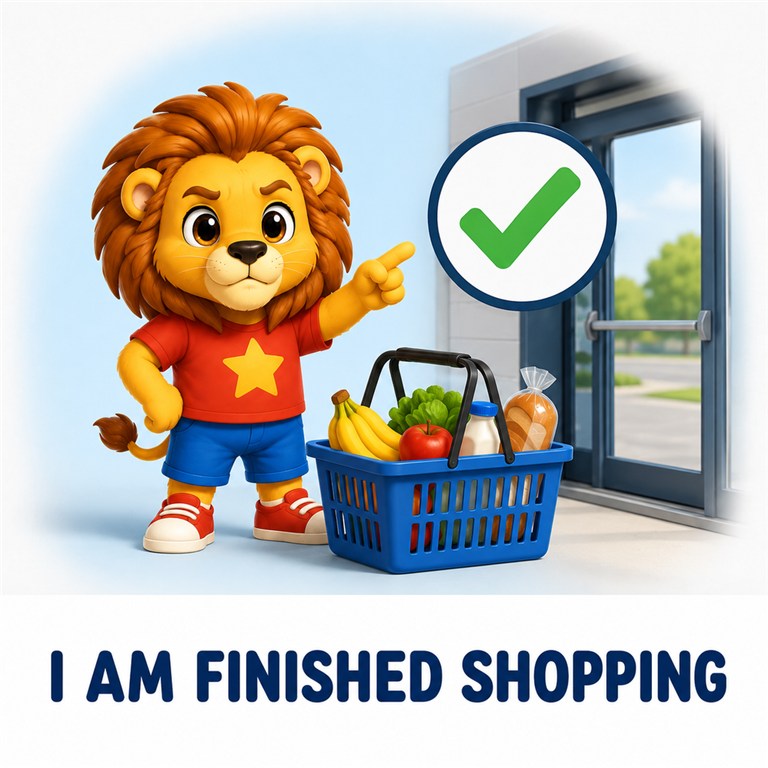
I Am Finished Shopping · I Need To Check My Change · I Want To Return This · No Bag Please · I Need A Bag · I Need A Receipt · I Need Help Paying · I Will Pay With A Card · I Will Pay With Cash · How Much Does This Cost · Where Can I Find This · I Need My Shopping List
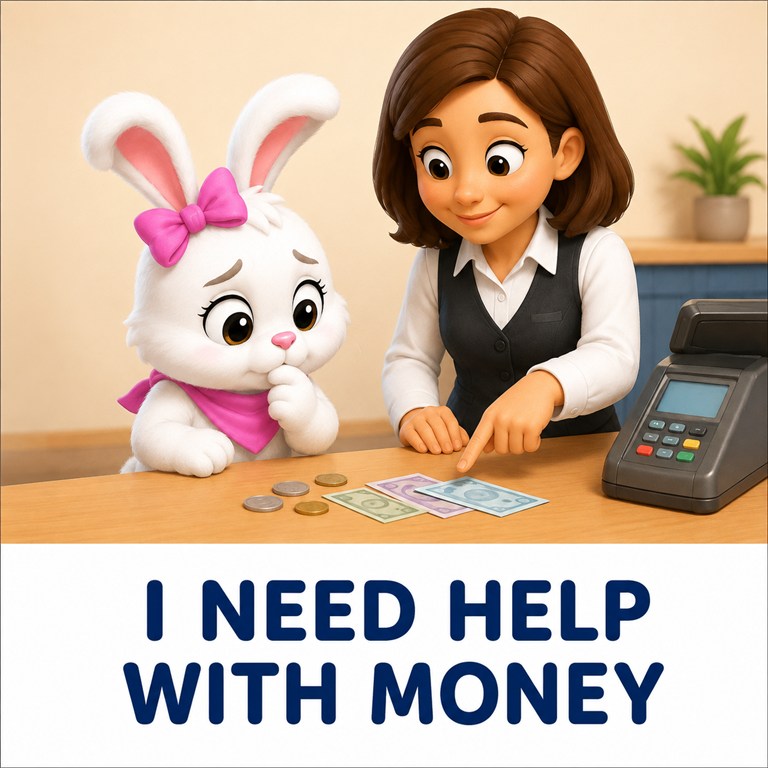
I Need Help With Money · Please Wait With Me · I Need a Quieter Area · This Store Is Too Loud · I Need a Cart · Where Is This Item · I Need Help Finding This · I Need a Shopping List · I Need a Basket

Let's · Together · Ask Me · Can I Have A Turn · Please Wait For Me · I Was Joking · I Am Being Serious · I Need An Apology
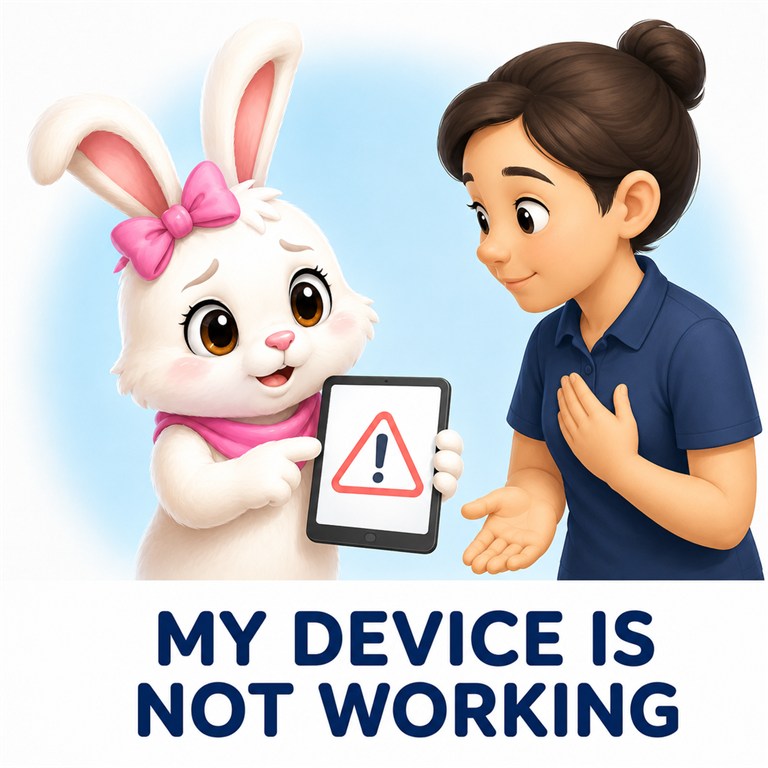
My Device Is Not Working · I Need A Charger · Volume Up · No Internet · I Need To Save My Work · I Need Accessibility Settings · Please Wait It Is Loading · I Forgot My Password · Help Me Log In · I Need Headphones · Screen Too Bright · Volume Down
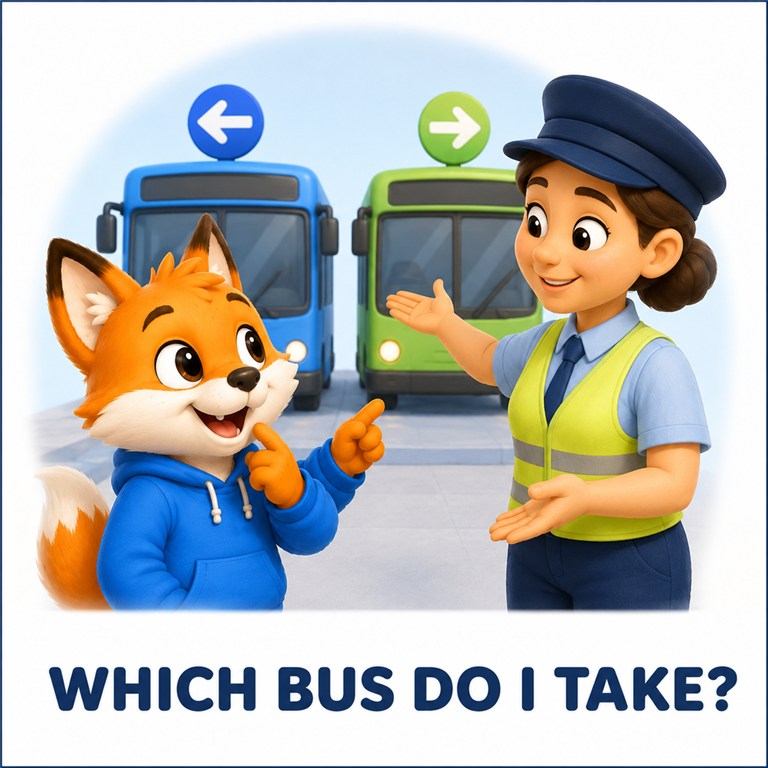
Which Bus Do I Take · Where Do I Wait · When Does It Arrive · This Is My Stop · Please Tell Me My Stop · My Ride Is Late · I Need To Get Off · I Need My Ticket · I Need Help Boarding · I Need An Accessible Seat · I Need A Seat · Which Train Do I Take
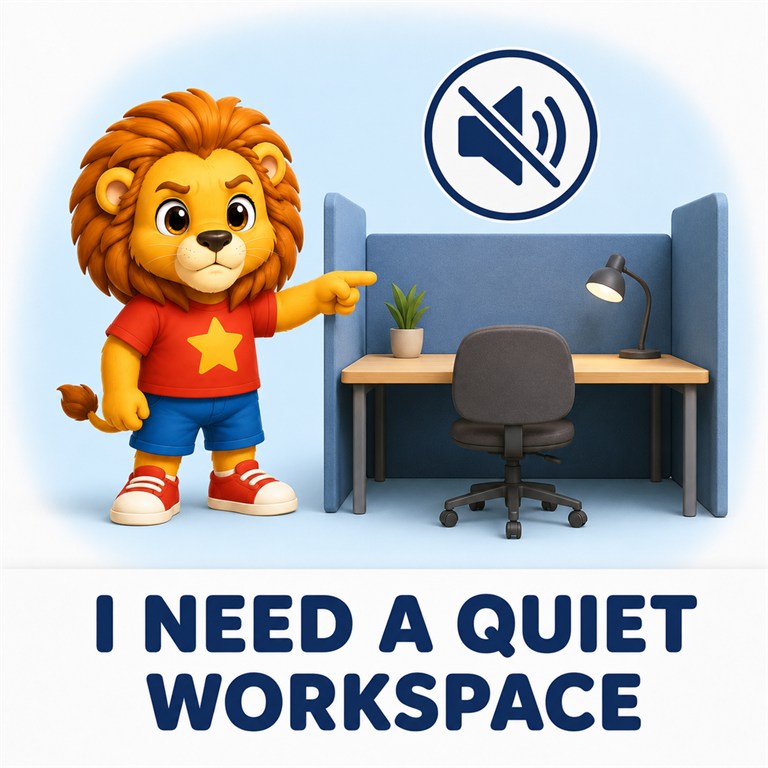
I Need A Quiet Workspace · When Is My Break · I Need A Different Task · Task Complete · Please Check My Work · I Need Help With This · I Need Supplies · I Need Instructions · Please Show Me How · I Need My Schedule · I Am Ready To Work · What Is My Task
The current app adds card images one at a time. Extract the pack first; Import Icon accepts an image, not the whole ZIP.
Explore included and optional offline voices. Expand a category for descriptions, female and male samples, and download details.
Choose a voice in Caregiver → Care & Learning → Communication Settings → Voice & Speech. Speed and pitch are adjustable.
About 326 MB installed. Allow at least 360 MB free in addition to the ZIP. How to import the voice pack →
You may delete the ZIP from Downloads after importing. Backups keep voice choices, but you will need to import the pack again on a new device. The included voices remain available. Reset Speech Settings restores the active child’s theme default. Voice Credits & Licenses is in Caregiver → Settings & Support → About App.
Opening Communication starts preparing the Default Bunny Binder, with EveryBunny Talks AAC first. In AAC, preparation follows your visible cards, current binder, search results, and message. Calming Tools prepares Bunny Comfort Mode. Unneeded preparation stops when you move on, and unrelated audio is cleared. Newly typed text or a cold start may still take time on your device.
Powered by Kokoro-82M. Model attribution and Apache 2.0 license are included in the ZIP. Voice quality is a personal preference; full precision uses more memory and does not guarantee every phrase sounds better.
Download a complete routine and import its ordered activities and pictures into My Daily Helper. Four starter schedules are already included; eight extra routines are available to add. Caregivers can edit every step to suit the person.




Bring back familiar songs and sounds. These five original audio tracks are included in My Daily Helper. If you remove one from your music list, download it here and add it back without reinstalling the app.
Planned lesson collections to support learning at different ages and abilities.

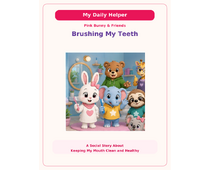
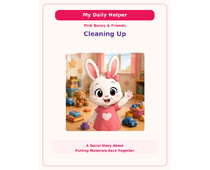
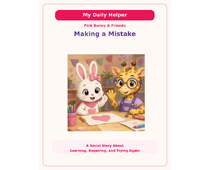
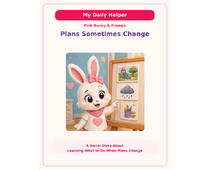
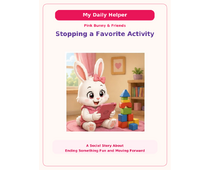
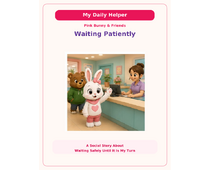
Choose a story, download its ZIP, and extract the PDF to use in My Daily Helper.
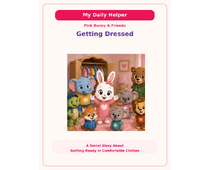
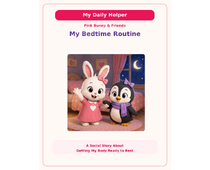
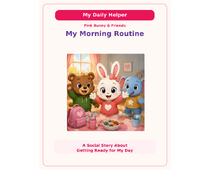
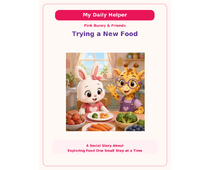
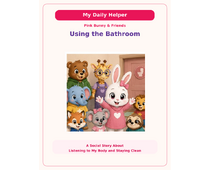
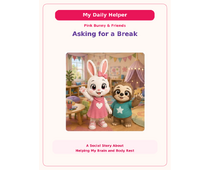
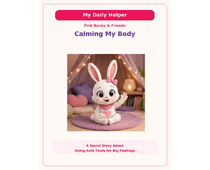
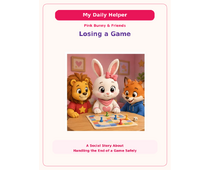
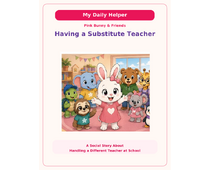
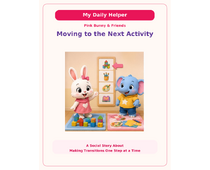
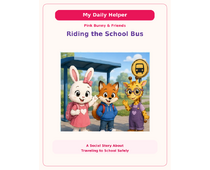
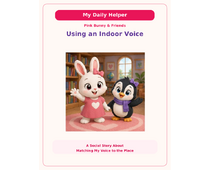
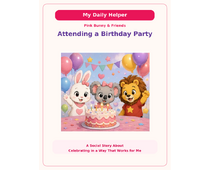
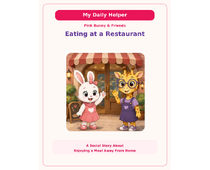
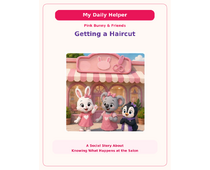
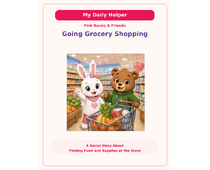
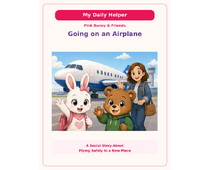
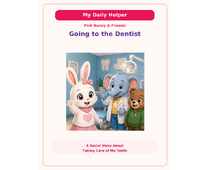
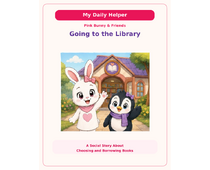
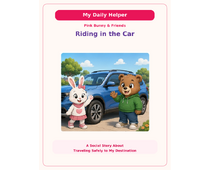
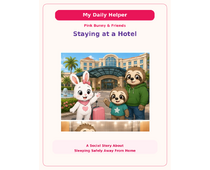
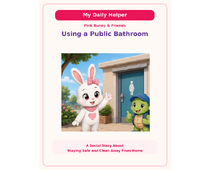
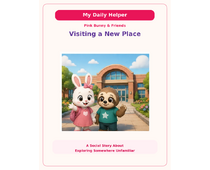
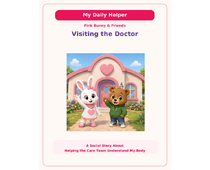
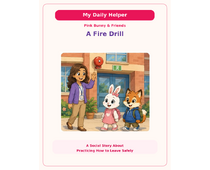
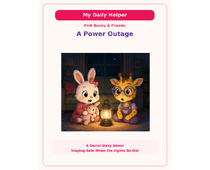
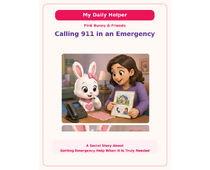
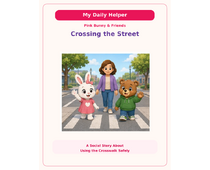
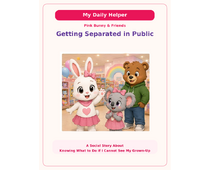
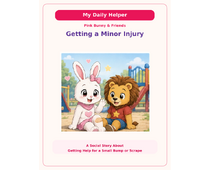
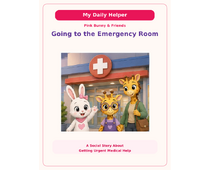
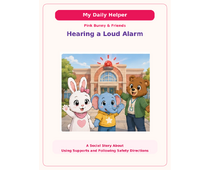
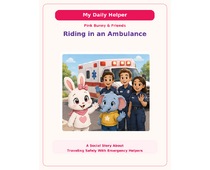
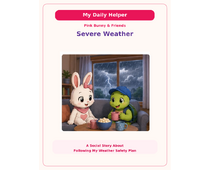
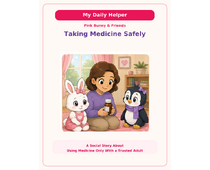
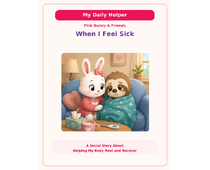
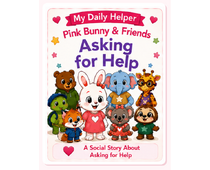
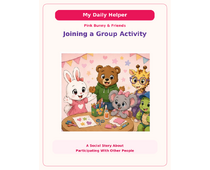
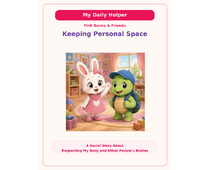
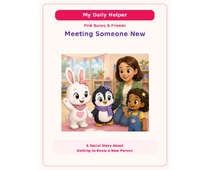
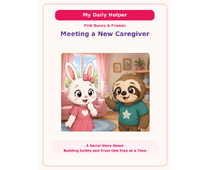
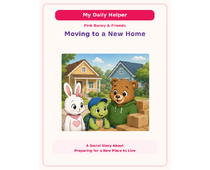
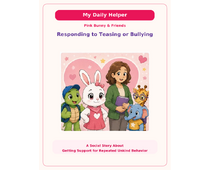
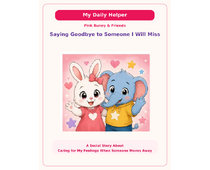
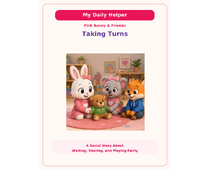
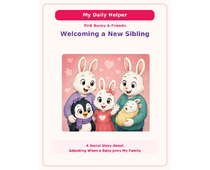
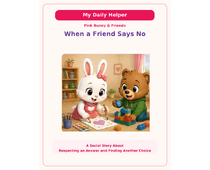
From download to story time
These packs contain PDFs. Extract the ZIP first—the PDF is the story file to add to the app.
Keep the selected PDF on your device so the app can continue to access it. Some stories may already be included in your app—check your library before adding a duplicate. Need help? Contact My Daily Helper support.
The complete schedule is copied into the app with its included pictures, so the downloaded file can be deleted after a successful import. Existing schedules and completed activities are preserved. Imported schedules are saved for the selected child and included in encrypted app backups. Use the current app version for these instructions.
Keep the selected audio files available on the device so the app can play them. If a track is only hidden, turn its switch back on in Calm Corner Music. Downloading and adding an audio file puts it back in the selected child’s music list.